
You connect a new device, have friends over for the weekend, and the question comes up: what’s the Wi-Fi password? On an Orange router, the security key is printed on the label underneath the Livebox. But after several years of use, the sticker may fade, or the password may have been changed without being written down. You can then retrieve and change your Orange Wi-Fi key through the router’s admin interface or the Orange mobile app.
Orange guest Wi-Fi: avoid sharing your main network key
Before looking for a way to change the Wi-Fi password, consider whether it’s really necessary. Orange offers a guest Wi-Fi feature that you can enable in the Orange app (Internet > Devices). This secondary network gives visitors internet access without revealing the key to your main network.
Guest Wi-Fi protects your network without changing your password. Devices connected to the guest network can’t see your home devices (printers, NAS drives, cameras). You’re sharing your internet connection, not your local network.
If you regularly have people over, this is the simplest solution. You can enable or disable guest access in seconds from the app, without changing your main Wi-Fi settings. If, however, your main network key has been compromised or you want to personalize it, you’ll need to change it directly. You can change your Orange Wi-Fi password at 192.168.100.1 by following a simple procedure.
Find your Orange Wi-Fi key without using the web interface
There are two ways to retrieve your current Wi-Fi password without opening a browser.
The Livebox label
The default WPA key is printed on the label underneath or on the back of the router. It’s marked “Security key” or “Wi-Fi key.” If nobody has changed the password since installation, this is the one to use.
The Orange mobile app
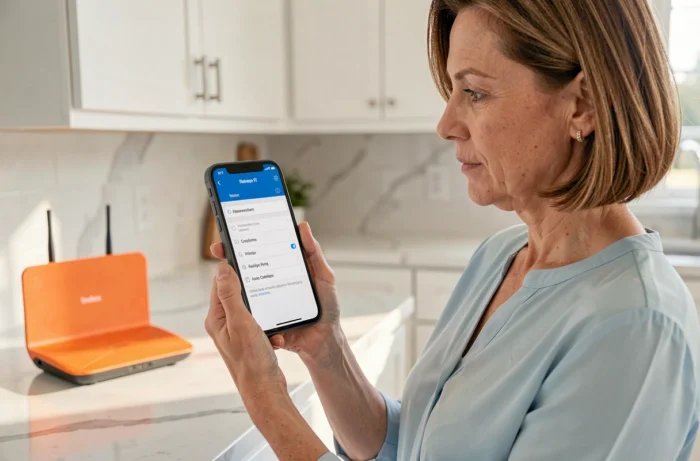
The Orange app (formerly Orange et Moi) lets you manage your Wi-Fi from a smartphone without entering an IP address. Under Internet > Devices, you’ll find the network name (SSID) and current security key. The app also lets you see connected devices and schedule Wi-Fi downtime at night or for parental controls.
This method works even when you’re not connected to the router’s Wi-Fi, as long as you’re signed in to your Orange account.
Change your Wi-Fi password from the Livebox interface
If you want to choose a new key, the Livebox admin interface offers the most comprehensive option. Access it from a browser (Chrome, Firefox, Safari) on a device connected to the router, either by cable or wirelessly.
Which IP address to enter in your browser
The access address varies by Livebox model. The most common address for standard Livebox models is 192.168.1.1. The address 192.168.100.1 applies to certain models or specific configurations. Before entering either address, check the label on your router: the admin console address is printed there, next to the admin password.
If neither address works, it’s often because your device is connected via 4G/5G rather than to the router’s network. Turn off mobile data and try again.
Sign in and change your Wi-Fi key
Once you’re on the admin page, enter the admin password (which is different from your Wi-Fi password). This password is also printed on the Livebox label, unless it has been changed.
Follow these steps to change it:
- Open the Wi-Fi or Wireless Network menu in the Livebox interface
- Find the “Security key” or “WPA key” field, which displays the current password
- Replace the key with a new password of at least twelve characters, combining uppercase and lowercase letters, numbers, and special characters
- Confirm the change and wait for Wi-Fi to restart (a few seconds)
After the change, all devices that were already connected will be disconnected. You’ll need to enter the new key on each smartphone, tablet, computer, smart speaker, or thermostat. Write down the new password somewhere safe before confirming.
Choose a secure Wi-Fi key for your Orange Livebox
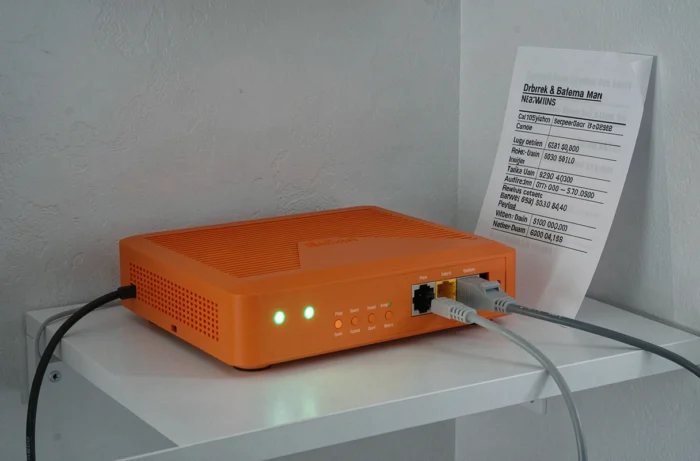
A Livebox’s default key is long and random, making it strong but impossible to remember. When replacing it, people tend to choose something simpler. The risk: a neighbor or passerby with a Wi-Fi scanning tool may be able to guess your password.
A good balance between security and memorability is to combine three or four unrelated words, separated by a number or symbol. “Phare7Lama-Carnet” is easier to remember than “xK9#mP2$vL” while still resisting dictionary attacks.
Never reuse a password you already use for an online account (email, social media). If that account is compromised, your home network could be too.
When you can’t access the admin interface
A few issues can prevent access to the 192.168.1.1 or 192.168.100.1 page:
- Your device is connected to another network (hotspot, a neighbor’s network, or mobile data is enabled)
- The admin password has been changed and nobody remembers it
- The Ethernet cable is plugged into the wrong port on the router
- An active VPN is routing traffic outside the local network
If you’ve forgotten the admin password, a physical reset of the Livebox (press and hold the recessed button on the back for several seconds with a paper clip) restores the factory login details. The Wi-Fi key will revert to the one printed on the label, and all custom network settings will be lost.
The Orange app is the quickest option if you don’t want to use the web interface. It covers most everyday needs: viewing the key, changing the SSID, enabling guest Wi-Fi, and checking connected devices.